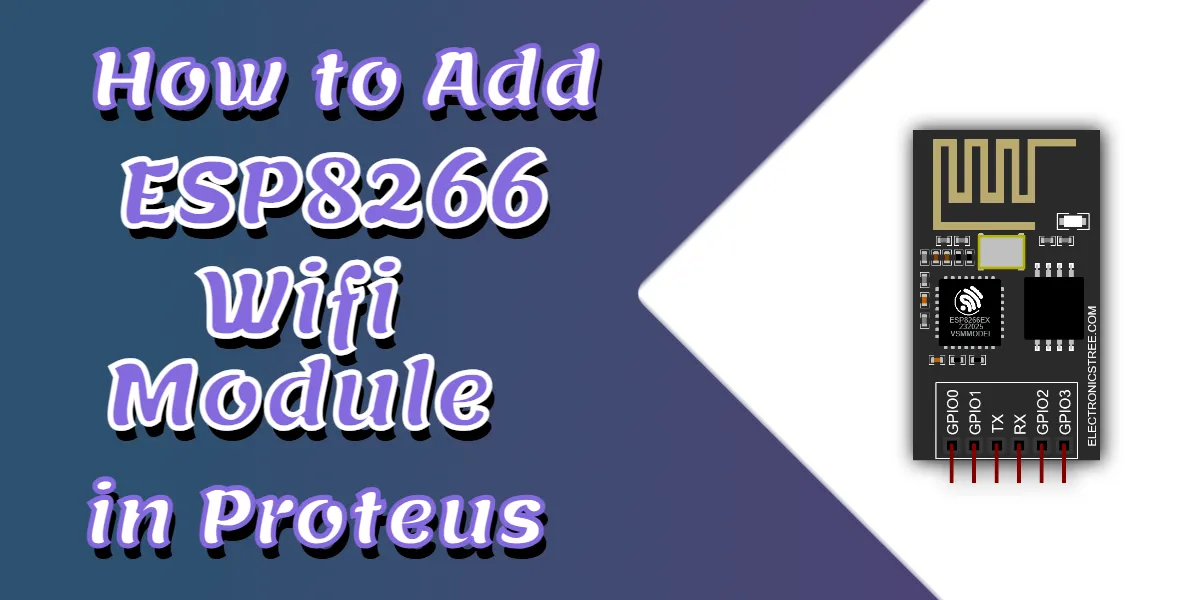
This guide shows how to download and install the ESP8266 Proteus Library in Proteus for simulating the ESP-01 WiFi module. By adding the ESP8266 Proteus Library, you can place the module directly into your schematic, connect it with micro-controllers like the Arduino Uno, and test WiFi-based IoT projects without touching physical hardware.
The ESP-01 module, powered by the popular ESP8266 chip, is widely used in embedded systems for wireless communication. In this post, you’ll get a step-by-step walkthrough on downloading, installing, and integrating the ESP8266 library so that you can start simulating and prototyping your IoT circuits immediately.
Step 1: Download the ESP8266 Proteus Library
First, you need to download the ESP8266 library files.
- Visit the ESP8266 Proteus library page: https://electronicstree.com/esp8266-proteus-simulation-model-library/
- Scroll down to the Download section of the article.
- Click the Download Library button.
- A ZIP file will start downloading.
Step 2: Extract the Downloaded File
After downloading the ZIP file, you need to extract it.
- Right-click the downloaded ZIP file.
- Select Extract Here or Extract to Folder.
- A password window will pop up. Enter the password.
All libraries developed by Electronicstree are protected with a password.
Password for extraction:
electronicstree.comAfter extraction, you will usually see folders like:
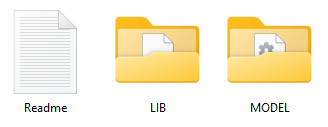
These folders contain the files required for the Proteus simulation.
Step 3: Copy the Library File
Open the LIB folder inside the extracted files. This folder typically contains a file such as:
ElectronicsTree[ESP01].LIBInstallation
- Copy the library file from the LIB folder.
- Navigate to the Proteus library directory.
Typical location:
C:\Program Files (x86)\Labcenter Electronics\Proteus 8 Professional\DATA\LIBRARYPaste the copied file into the LIBRARY folder.
This file allows Proteus Design Suite to recognize the ESP-01 component in schematic designs.
Step 4: Copy the Simulation Model File
Next, open the MODEL folder. This folder contains simulation model files required for proper circuit simulation.
- Copy the ESP8266XX.DLL file inside the MODEL folder
- Navigate to the Proteus MODELS directory.
Typical path:
C:\Program Files (x86)\Labcenter Electronics\Proteus 8 Professional\DATA\MODELSPaste the file there.
This DLL allows Proteus to simulate the behavior of the ESP8266 ESP-01 Wi-Fi module.
Step 5: Restart Proteus
Once all files are copied:
- Close Proteus Design Suite completely.
- Reopen the software.
Restarting the program allows Proteus to detect newly installed libraries.
Step 6: Verify the ESP8266 Proteus Library Installation
After restarting Proteus, verify that the library was installed successfully.
- Open Proteus ISIS schematic editor.
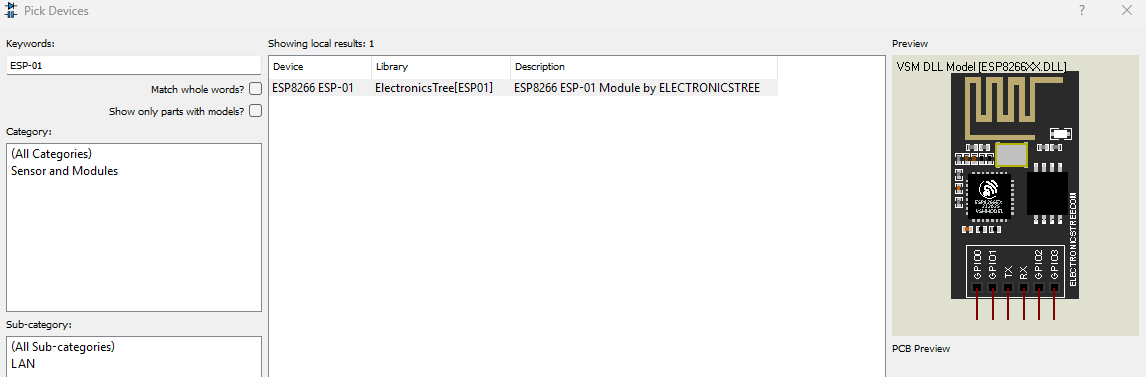
- Click Pick Devices (P).
- Search for:
ESP-01If the installation was successful, the ESP-01 module will appear in the component list. You can now add it to your schematic and start designing IoT circuits.
Important Note
The ESP8266 Proteus library model is not compatible with Proteus 9 and only works in Proteus 8. It also works fine in Proteus 7. Proteus 9 uses a 64-bit architecture, while all the models that include DLL files were originally built for 32-bit systems. If someone tries to use these models in Proteus 9, the first error they will encounter is: “model.dll not found.
We’re always looking to expand our library collection based on what our community needs. If you’re looking for a specific Arduino module, sensor, or component that we don’t currently offer, we’d love to hear from you!
Reach out to us at help@electronicstree.com with your requests. We prioritize new library development based on community demand, so your suggestion could be our next addition.
Join the official WhatsApp channel of ElectronicsTree to stay updated with the latest electronics tutorials, Proteus libraries, Arduino projects, and simulation resources.