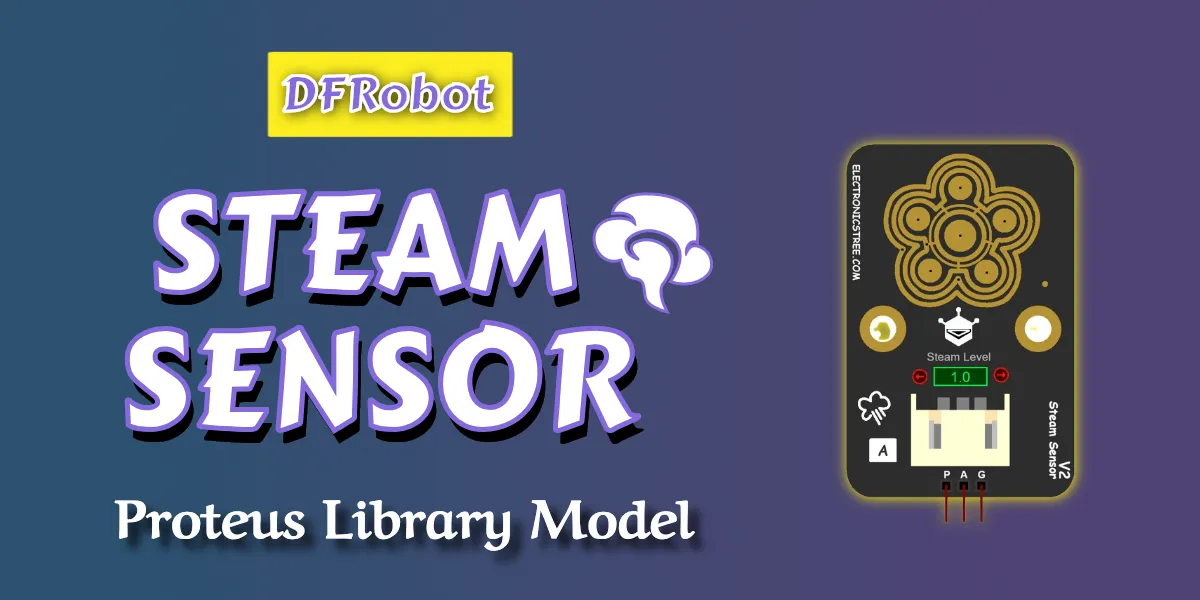
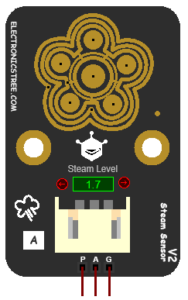
This simulation is made to behave like the real DFRobot Gravity Analog Steam Sensor. It shows how the sensor reacts when moisture or steam touches its surface by giving an analog voltage output that increases as the moisture level goes up.
The simulation includes the main features of the real sensor, such as:
- An output voltage that is close to 0 V when the surface is dry and rises to about 4.5 V at high moisture levels when powered with 5 V, or up to around 3.0 V when using a 3.3 V supply.
- Simple connections using VCC, GND, and a signal pin, making it easy to connect to a microcontroller’s analog input.
- Useful applications like detecting water drops, sensing steam, rain detection, or working as a basic moisture or touch sensor.
This model is part of a larger set of DFRobot sensor simulations I have created over time. Some earlier simulations include an Ambient Light Sensor, Digital Shake/Vibration Sensor, Water Pressure Sensor, Liquid Level Sensor, Oxygen Sensor and Air Quality Sensor . All of these are built to act like the real hardware, so students, engineers, and hobbyists can write and test their code or systems without needing the physical sensors.
How to use Steam Sensor with Arduino
Using steam sensor model with an Arduino is very simple.
Wiring:
- Connect VCC to the 5V Terminal.
- Connect GND to the GND Terminal.
- Connect the Signal pin to any Arduino analog pin, such as A0.
Basic Arduino example:
- Read the steam sensor value using
analogRead(). - The Arduino will convert the sensor’s voltage into a number between 0 and 1023.
- Higher values mean more moisture or steam on the sensor surface.
This allows you to easily monitor moisture levels, trigger actions (like turning on a fan or alarm), or test your code using the simulation before using the real sensor.

Arduino Code
const int sensorPin = A3;
int sensorValue = 0;
int moisturePercent = 0;

void setup() {
  Serial.begin(9600);
}

void loop() {
  sensorValue = analogRead(sensorPin);
  moisturePercent = map(sensorValue, 0, 1023, 0, 100);
  Serial.print("Raw Value: ");
  Serial.print(sensorValue);
  Serial.print("  |  Steam / Moisture Level: ");
  Serial.print(moisturePercent);
  Serial.println("%");
  delay(500);
}
Download Library
Simply click on the button to download the library. You can refer to this post for instructions on how to install the library in Proteus 8. How to Download and install Library in Proteus (electronicstree.com)
ZIP Password : electronicstree.com
We’re always looking to expand our library collection based on what our community needs. If you’re looking for a specific Arduino module, sensor, or component that we don’t currently offer, we’d love to hear from you!
Reach out to us at help@electronicstree.com with your requests. We prioritize new library development based on community demand, so your suggestion could be our next addition.